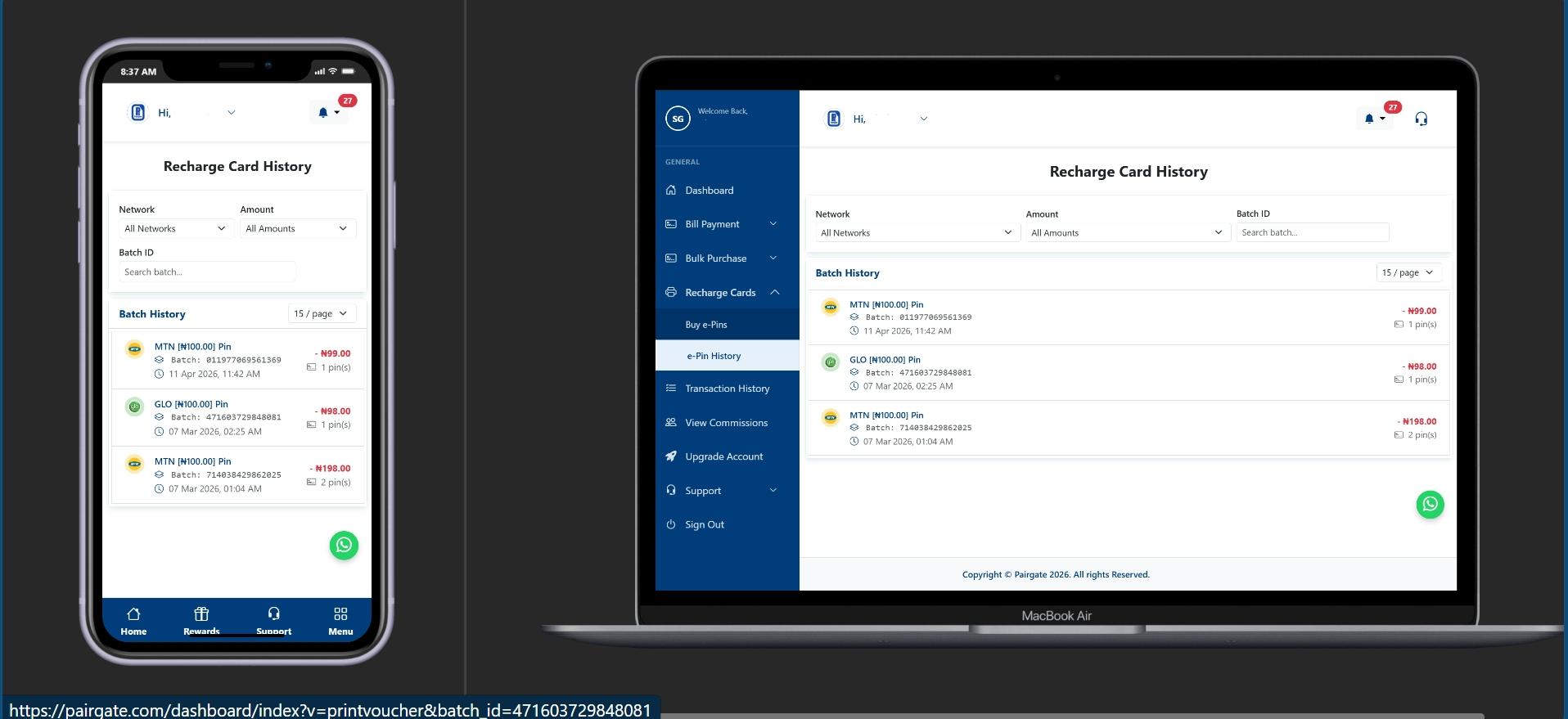
Running a recharge card printing business in Nigeria keeps you on your toes. Between handling walk-in customers and managing bulk requests, it is easy to accidentally close a browser tab, clear your downloads, or lose track of the vouchers you just generated. If you have ever panicked thinking you lost your hard-earned money to a missing airtime voucher sheet, you are not alone.
The good news is that you don't have to lose sleep or money. Pairgate securely logs every single token and e-Pin you generate on the platform. You can easily access, download, or reprint your tokens at any time without paying any extra activation fees.
Whether you want to reprint a specific batch for a customer, download them as a PDF for safekeeping, or track your daily business turnover, accessing your recharge card history on Pairgate takes less than a minute. This comprehensive tutorial will walk you through the process on both mobile devices and desktop computers.
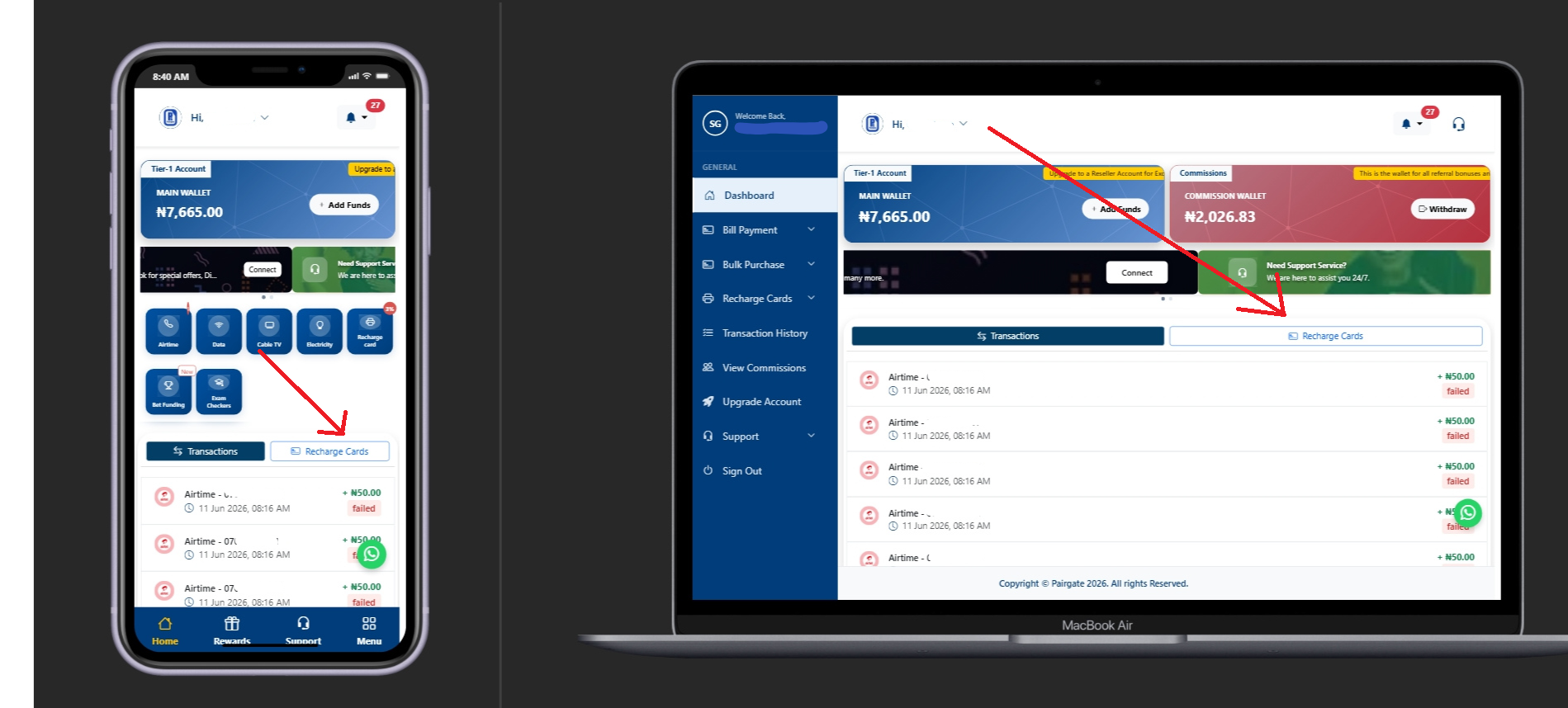
Step 1: Access Your History Directly from the Dashboard Home
The absolute fastest way to see your recent transactions is right on your main account screen. Once your dashboard loads after you
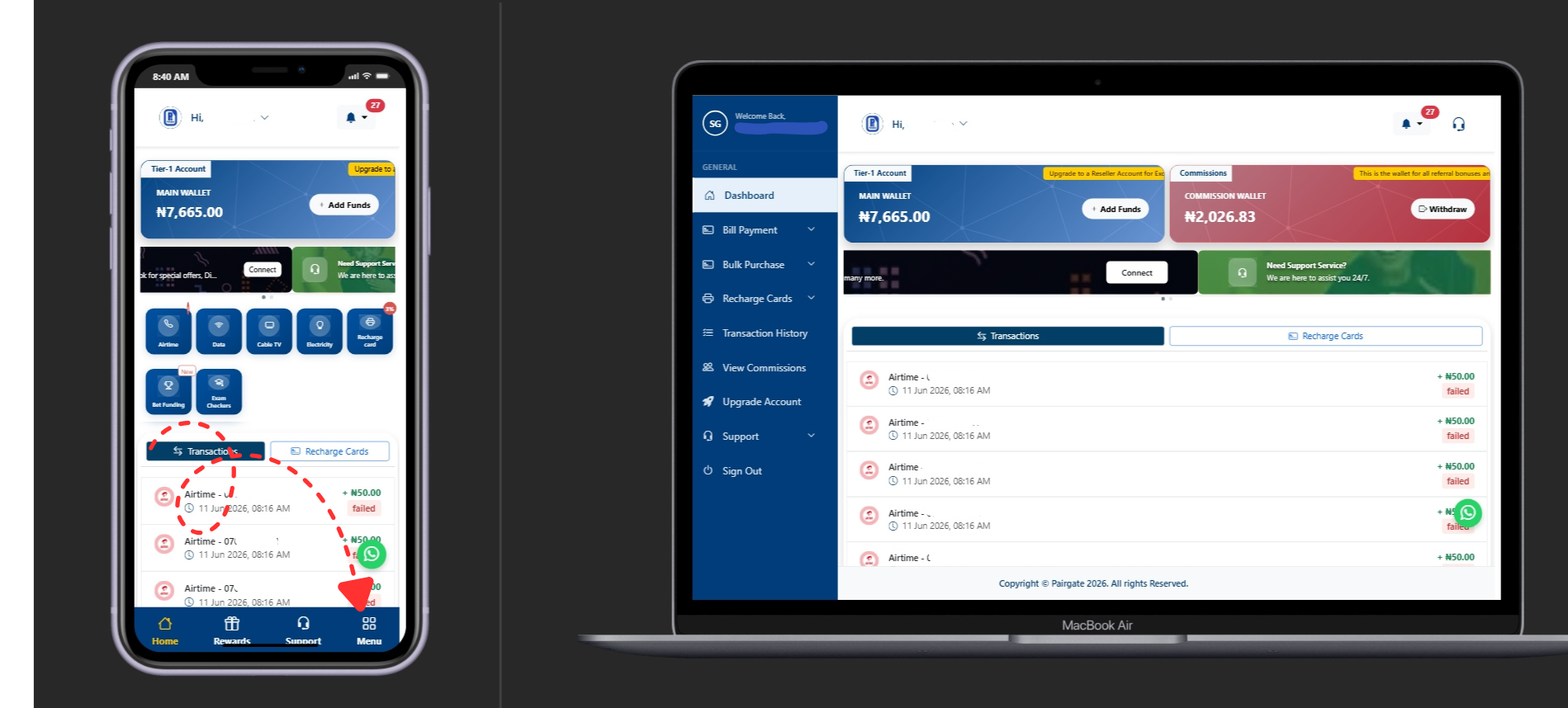
Step 2: Use the Mobile Mobile Navigation (For Phones and Tablets)
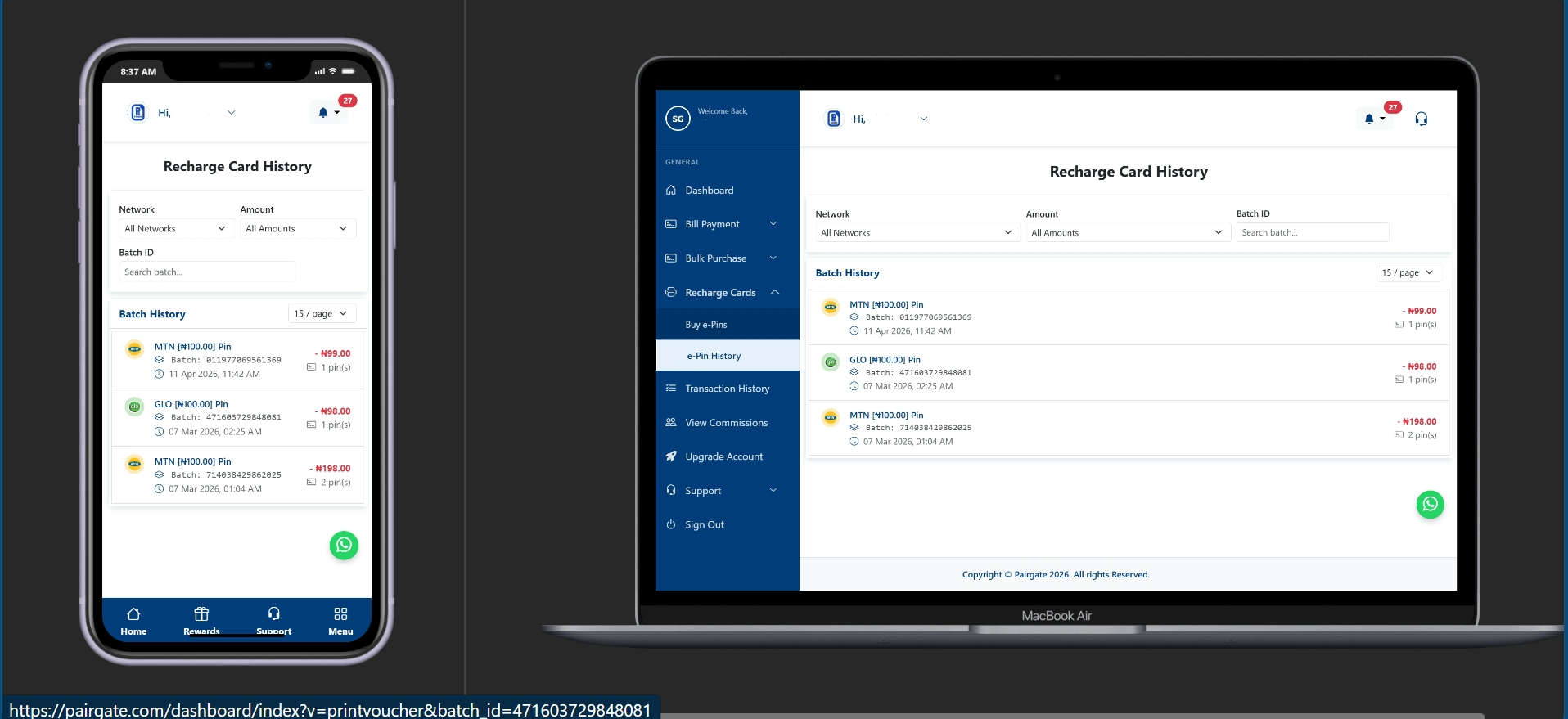
If you are managing your business on the go using a smartphone or the Pairgate mobile app, look at the bottom navigation bar. Tap on the "Menu" icon at the bottom of the screen, select the "Recharge Cards" option, and then click on "e-Pin History" to display your full logs.
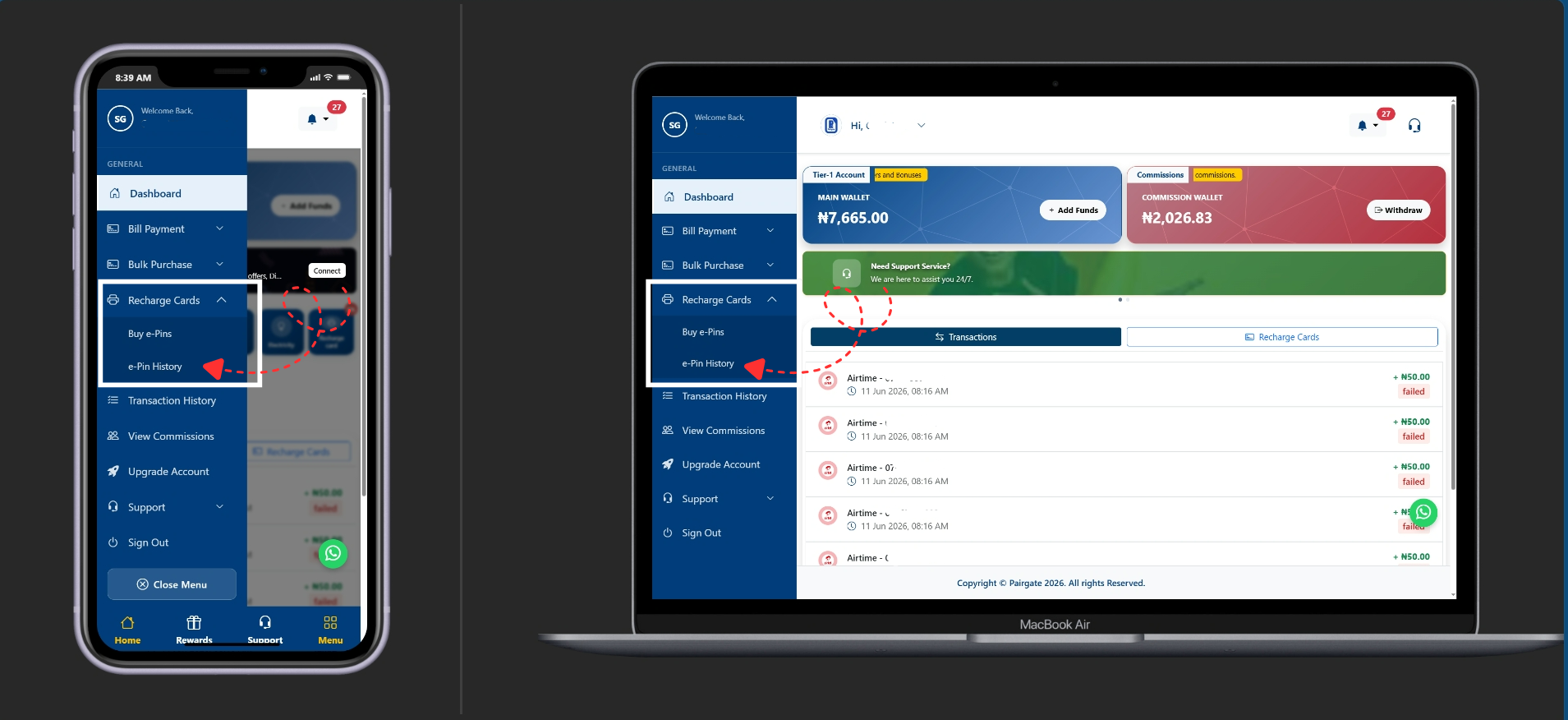
Step 3: Use the Desktop Sidebar Navigation (For Laptops and PCs)
If you are operating from a cyber café or using a computer to print bulk sheets, the navigation layout is even more direct. Look at the left-side navigation panel which is already open on your screen, click on the "Recharge Cards" tab, and select "e-Pin History" to view your neatly compiled tables.
Step 4: Download or Print Your Selected Voucher Batches
Once you locate the specific batch you want to recover based on the date and network (MTN, Airtel, Glo, or 9mobile), tap the view action icon. From this layout, you can instantly click "Download PDF" to save the electronic pins to your local storage or tap "Print" to send the vouchers directly to your connected Bluetooth POS thermal printer or standard desktop paper printer.
💡 Pro Tip: Always save your voucher batches as a PDF on your device before sending them to a physical printer. This gives you a permanent offline backup, allowing you to quickly check specific pins for a customer if they claim a card isn't loading, without needing to open your browser again.
Ready to scale your business with the most reliable transaction tracking tools in Nigeria?